1. Make a rehearsal file once
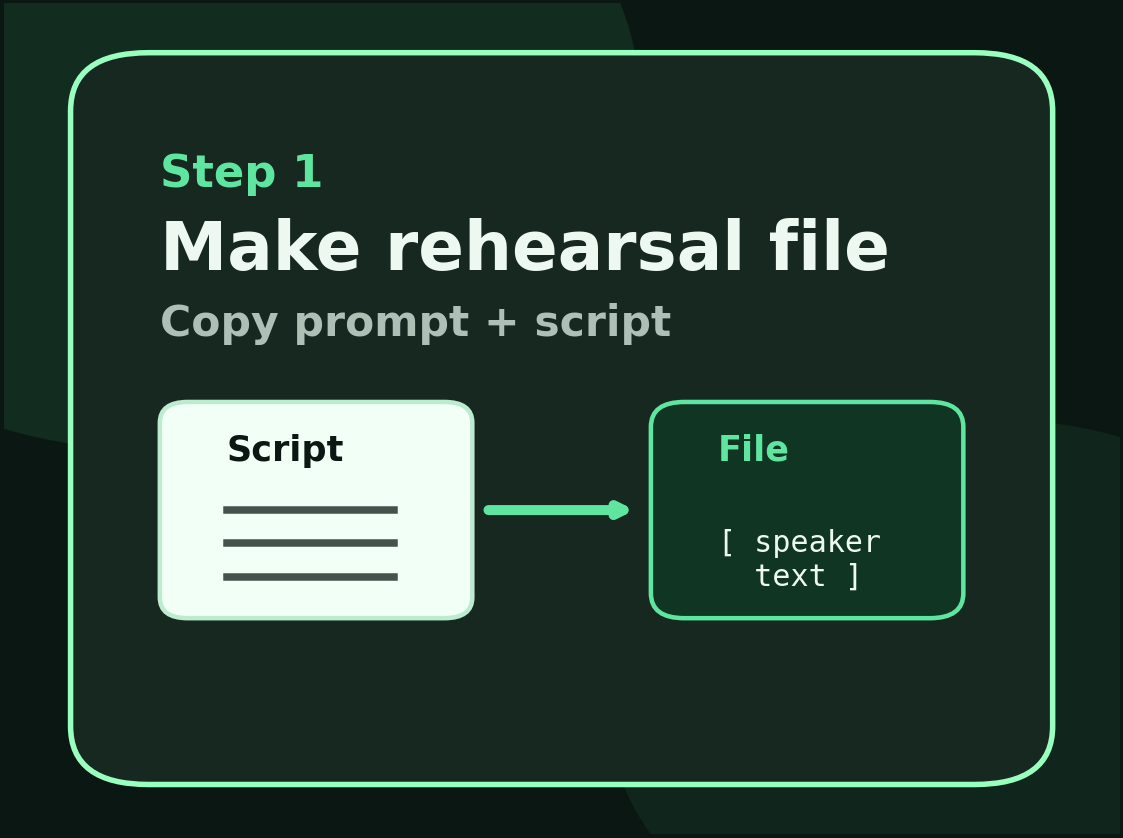
Practice Lines Online does not read arbitrary PDFs or screenplay layouts directly. It expects clean character and line data so the browser can decide who speaks, which line comes next, and where a cue begins. That is why the app includes a conversion prompt. You paste the prompt into a helper tool, paste the script under it, and bring the structured result back into the app.
This extra step is not for technical decoration. It prevents the app from guessing speaker names or scene breaks incorrectly. Once a rehearsal file is clean, you can keep reusing it without repeating the conversion workflow.
2. Fix import problems before you rehearse
Long scripts often arrive with spacing problems, split names, or paragraph breaks in the wrong place. Expand Fix Script Lines before rehearsal if the imported result looks off. Search for a line, filter by character, jump to a line number, and repair the file once. The line number column shows exactly where you are editing, and the Add after field tracks the selected row so missing lines can be inserted in the right place.
When the cleanup is finished, use Copy Rehearsal File or Download File. That saves time later because you can return to the cleaned version instead of rebuilding the script from scratch.
3. Choose the role you play
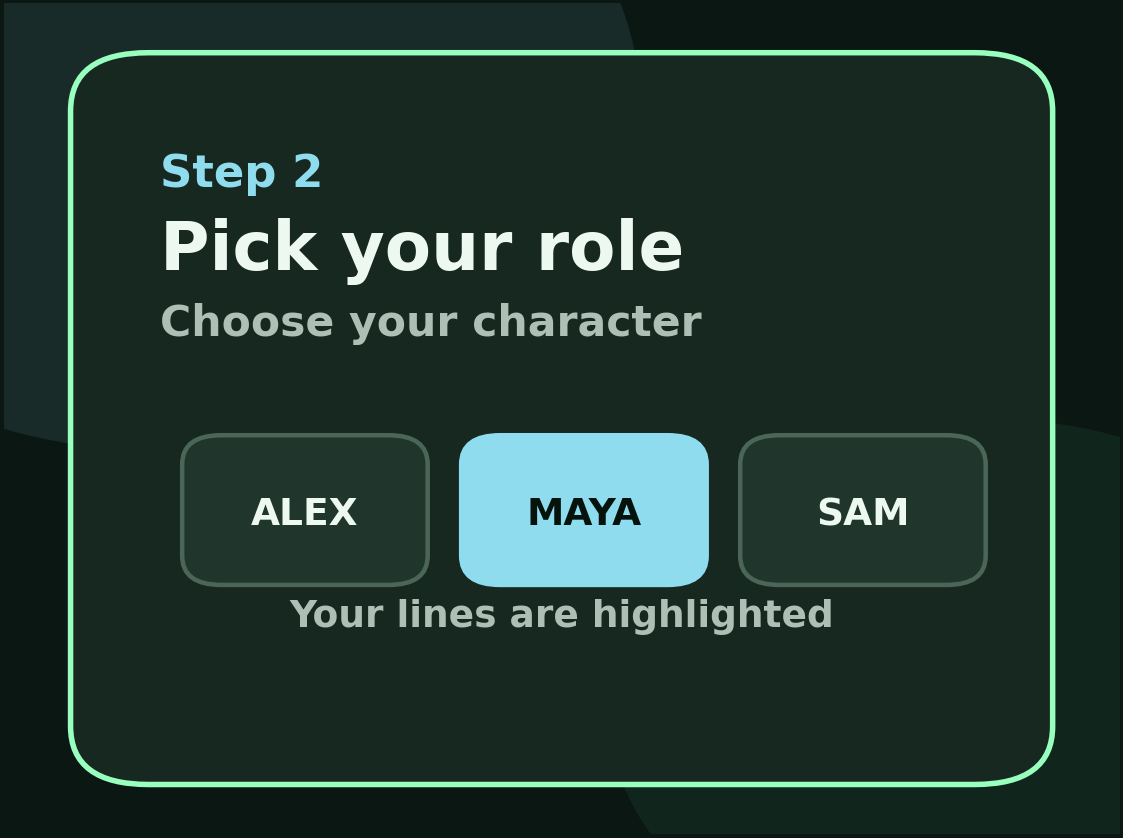
After the script is loaded, choose one character in Step 2. Every line by that character becomes your responsibility. Every other line becomes cue material. This is what turns a multi-character script into a solo rehearsal workflow. If you pick the wrong role, the cue rhythm will feel wrong immediately, so this step matters more than it looks.
4. Rehearse with the right controls
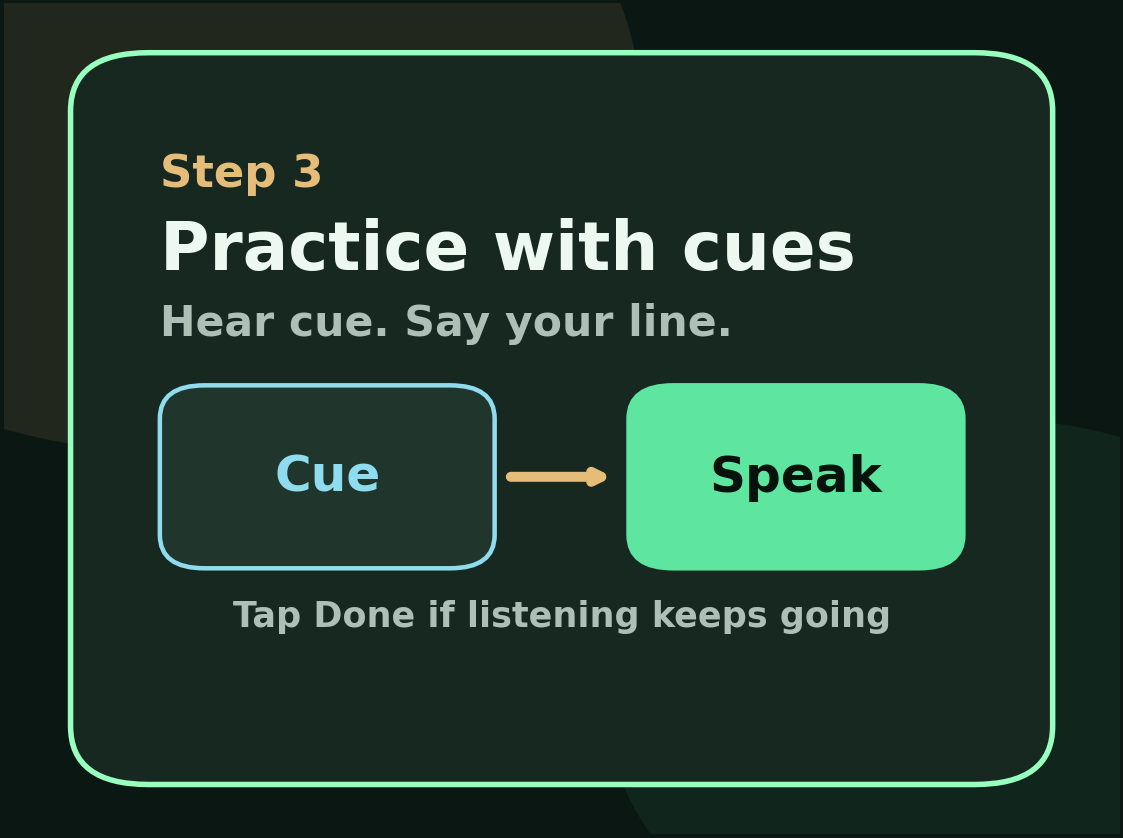
Replay Other Line plays the current cue again. Speak Your Line starts listening on your line. Done Speaking is the manual stop when the browser keeps listening too long. Pause stops the current run. Accept & Next is for cases where your line was fine in rehearsal but the browser scored it badly. Skip moves forward without crediting the line as correct.
The live status chip near the controls tells you whether the app is ready, playing a cue, listening, or paused. Use that as the quickest signal when you are moving fast through a long scene.